

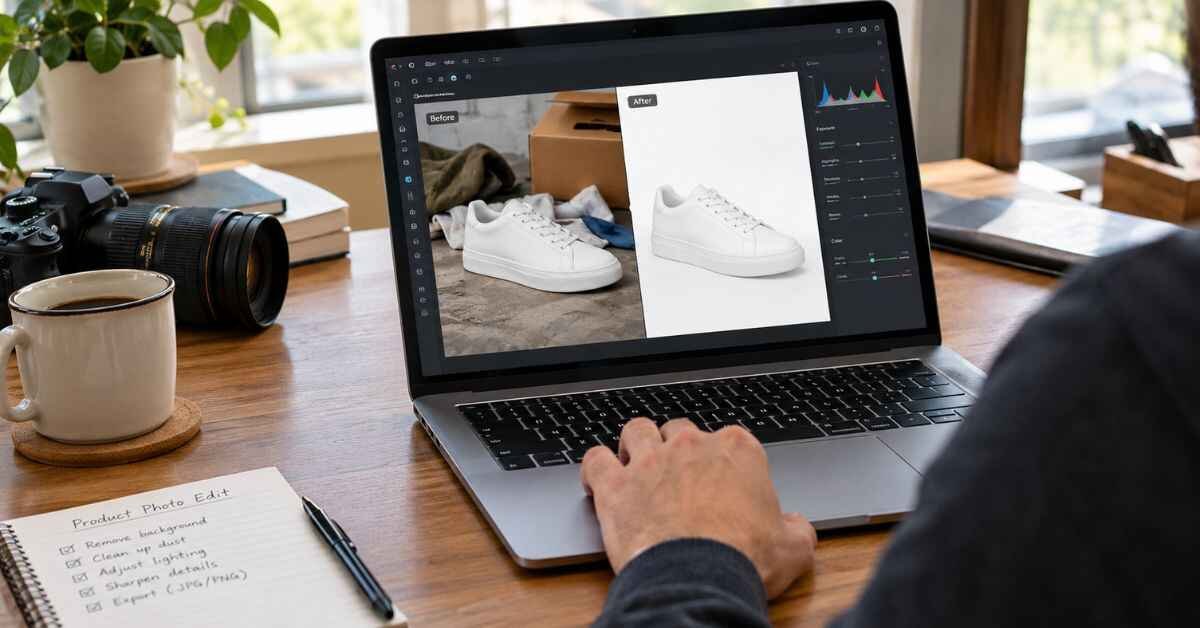
Quick Recommendation: The best overall free tool is Photoroom, thanks to its clean edges and built-in shadow options. The best bulk option is Pixelcut, which handles batches of catalog images quickly. The best native Shopify option is the built-in Shopify media editor, because it removes the background without leaving your admin.
By a Shopify store consultant and product photographer with 8+ years of experience
Introduction
A cluttered background can cost you a sale before a shopper reads a single word. Messy backdrops make products look cheap, and inconsistent photos make a store look untrustworthy.
The good news is that you no longer need Photoshop skills or a big budget to fix this. A free AI background remover for Shopify product photos can give you clean, consistent images in seconds.
I’ve retouched product images for years, and I recently ran a batch of 100+ Shopify product photos through the most popular free tools. Here is what held up and what didn’t.
[Image: Before and after comparison of a sneaker product photo using a free AI background remover]
Why Every Store Needs a Free AI Background Remover for Shopify Product Photos
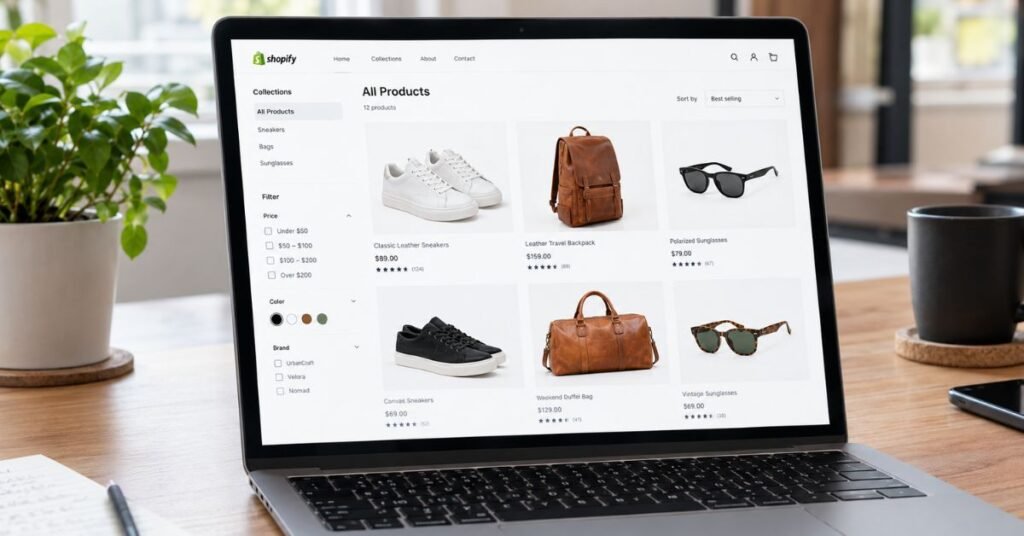
A free AI background remover for Shopify product photos solves the most common visual problem I see in small stores: inconsistent, distracting backgrounds. When every product sits on the same clean white or light backdrop, your collection pages look professional and cohesive.
Shopify themes, Google Shopping, and marketplaces like Amazon also favor clean, white-background main images. Some of them require it.
Here is what clean backgrounds actually do for you:
- Higher perceived quality: Shoppers judge trust in the first few seconds.
- Consistent grids: Collection pages look intentional instead of chaotic.
- Marketplace compliance: Google Merchant Center and Amazon prefer plain backgrounds.
- Faster editing: What took me 10 minutes in Photoshop now takes seconds.
The catch is that “free” always comes with trade-offs. Export size, watermarks, and daily limits vary by tool, so I’ll flag those below.
Quick Comparison Table
These ratings reflect my own testing on a mixed set of products: apparel, jewelry, glassware, and shoes. Free plan terms change often, so confirm current limits on each tool’s pricing page.
| Tool | HD Export Quality | Bulk Processing | Native Shopify Integration | My Rating |
| Shopify Built-in Editor | Good (matches your upload) | Limited (one image at a time) | Yes, built in | 4.0/5 |
| Photoroom | Very good | Yes (batch mode) | Via export/upload | 4.7/5 |
| Pixelcut | Very good | Yes (batch mode) | Via export/upload | 4.4/5 |
| Pxl Photo Remover | Good | Limited | Via export/upload | 3.8/5 |
| Remove.bg | Good on free, best on paid | Limited on free | Via export/upload | 4.2/5 |
[Image: Side-by-side results of all five tools on the same handbag photo]
5 Best Free AI Background Removers for Shopify
I tested every tool with the same set of images so the comparison stays fair. I included easy subjects like boxed goods and difficult ones like glass, jewelry, and fuzzy knitwear.
1. Shopify Built-in Editor
My hands-on experience: When I tested this, the biggest win was convenience. I uploaded a product image to my admin and removed the background without downloading or re-uploading anything.
It handled solid, high-contrast products like bottles and boxes very well. It struggled more with low-contrast items, such as a white mug on a light backdrop.
Key features:
- Background removal directly inside the Shopify admin
- No extra account or app required
- Works on images already attached to your products
Pros & Cons:
- Pro: Zero workflow friction and no extra tools to manage
- Pro: Free with your Shopify plan
- Con: Limited control over edge refinement
- Con: Not built for processing hundreds of images quickly
Free plan limitations: There is no separate free tier to worry about, but you get fewer styling and shadow options than dedicated editors.
2. Photoroom
My hands-on experience: Photoroom gave me the cleanest cutouts overall. Edges on shoes, bags, and clothing looked natural, and the shadow tools saved me from the “floating product” look.
Fine hair and fur-like textures, such as faux-fur trim, came out better than I expected. I still had to touch up a few stray fringe areas by hand.
Key features:
- Accurate AI cutouts with an eraser and restore brush
- AI shadows and simple background templates
- Batch editing for multiple photos
- Mobile app for quick shooting and editing
Pros & Cons:
- Pro: Best edge quality in my tests
- Pro: Realistic shadows make products feel grounded
- Con: Some features and exports sit behind a paid plan
- Con: Free exports may include a watermark
Free plan limitations: Expect a watermark or reduced features on some exports. Check current terms before building your workflow around it.
[Image: Photoroom cutout of a leather handbag with a soft AI shadow on a white background]
3. Pixelcut
My hands-on experience: Pixelcut felt fast and straightforward. I dropped in a set of apparel photos, and the batch tool kept the results consistent across the whole set.
It did well on clothing and accessories. Glassware was its weak point, since transparent areas sometimes turned partly opaque.
Key features:
- One-tap background removal
- Batch processing for catalog work
- White, colored, and templated backgrounds
- Web and mobile versions
Pros & Cons:
- Pro: Strong batch workflow for busy catalogs
- Pro: Simple interface that new store owners can learn in minutes
- Con: Transparent products need manual cleanup
- Con: Higher resolution exports may require a paid plan
Free plan limitations: Free usage is capped, and some exports or batch features may be restricted. Test a handful of images first.
4. Pxl Photo Remover
My hands-on experience: Pxl Photo Remover worked best as a quick, no-fuss option for simple products. Boxes, bottles, and packaged goods came out clean.
On complex edges like jewelry chains and woven fabrics, I saw rough spots that needed correction. It’s a fine backup, but it wasn’t my first choice.
Key features:
- Simple upload-and-download background removal
- Transparent PNG export
- Minimal learning curve
Pros & Cons:
- Pro: Fast and easy for straightforward products
- Pro: Good for quick one-off fixes
- Con: Edge detail on complex items was inconsistent
- Con: Fewer editing and shadow tools than Photoroom
Free plan limitations: Limits on volume or output quality may apply. Verify the current free tier before committing.
5. Remove.bg
My hands-on experience: Remove.bg is the tool I’ve used the longest. It’s reliable on people, clothing, and clearly defined subjects, and it rarely does anything strange.
On the free tier, previews are lower resolution than I’d want for a hero image. For full-quality exports, you’ll usually need credits or a paid plan.
Key features:
- Fast, accurate cutouts on most subjects
- Transparent PNG output
- API and plugin options for advanced workflows
Pros & Cons:
- Pro: Consistently dependable results
- Pro: Great for sharp, high-contrast products
- Con: Free output resolution is limited
- Con: Bulk work gets expensive quickly
Free plan limitations: The free version is best for testing. Full HD downloads generally cost extra.
Edge Cases: Fixes That Actually Worked
Every AI remover struggles somewhere. These are the fixes I use most.
- Glass and transparent items: Shoot against a dark, plain backdrop, remove the background, then place the product on a light surface and add a soft shadow.
- Fine hair, fur, and fringe: Use the restore brush to bring back lost strands, then zoom to 200% to check the edges.
- Shadows: Remove the original background, then add a fresh, soft shadow. A flat cutout with no shadow looks fake.
- White products on white: Shoot on a mid-tone backdrop first, remove it, then switch to white.
How to Process Product Photos in Bulk
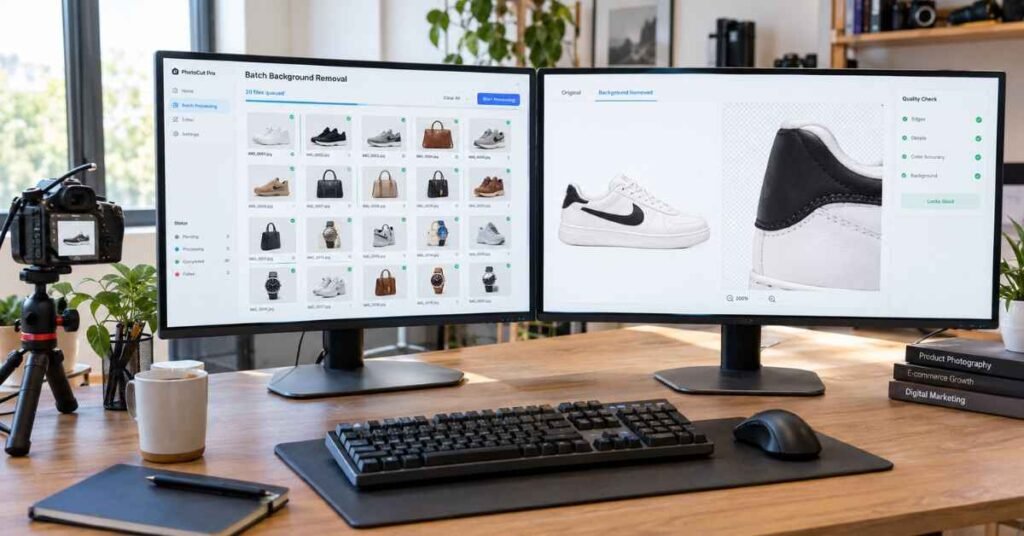
Bulk processing is where most store owners waste time. Here is the workflow I use for a new product launch.
- Shoot consistently. Use the same lighting, distance, and angle for every product. Consistent inputs give consistent cutouts.
- Name your files clearly. Use a format like brand-product-color-01.jpg. It helps with Shopify SEO and keeps your library organized.
- Run a test batch of 5 to 10 images. Check edges, shadows, and color accuracy before you process the full catalog.
- Process the full batch. Use Photoroom or Pixelcut’s batch mode to keep the white background and shadow style identical.
- Spot-check every image at full zoom. Look for chewed edges, leftover background, and missing details.
- Export at the right size. I recommend at least 2048 x 2048 px, square, so shoppers can zoom.
- Compress before uploading. Use a compression tool to keep file size small without visible quality loss.
- Add alt text in Shopify. Describe the product plainly so images support accessibility and SEO.
[Image: Screenshot of a batch upload screen with 20 product photos queued for background removal]
Frequently Asked Questions
What is the best free AI background remover for Shopify product photos? For most stores, Photoroom gives the cleanest edges and the most useful finishing tools. If you only need occasional edits, the built-in Shopify editor is the simplest choice.
Can I remove backgrounds directly in Shopify? Yes. Shopify’s media editor includes background removal in the admin, which is handy for quick fixes. For large batches or detailed refinement, a dedicated tool is faster.
What background color is best for Shopify product photos? Pure white (#FFFFFF) is the safest choice for Google Shopping and marketplace compliance. Many stores also use a consistent soft neutral for lifestyle-style collections.
Do free background removers lower image quality? Sometimes. Free tiers often cap export resolution or add watermarks, so always check the downloaded file at full size before you upload it.
Final Verdict
If you want one tool, start with Photoroom for the best balance of quality and finishing options. Use Pixelcut when you have a large catalog to process, and use Shopify’s built-in editor for quick one-off fixes.
Whichever you choose, test 5 to 10 images first and check the edges at full zoom. A clean, consistent look matters more than the specific tool.
Pick one tool, process your top-selling products first, and measure the change in your conversion rate over the next few weeks.

Muhammad Talha breaks down complex AI tools into simple, step-by-step guides for e-commerce entrepreneurs. His goal: to help you work smarter, not harder, by leveraging artificial intelligence
2 thoughts on “Free AI Background Remover for Shopify Product Photos: 5 Tools I Tested”